

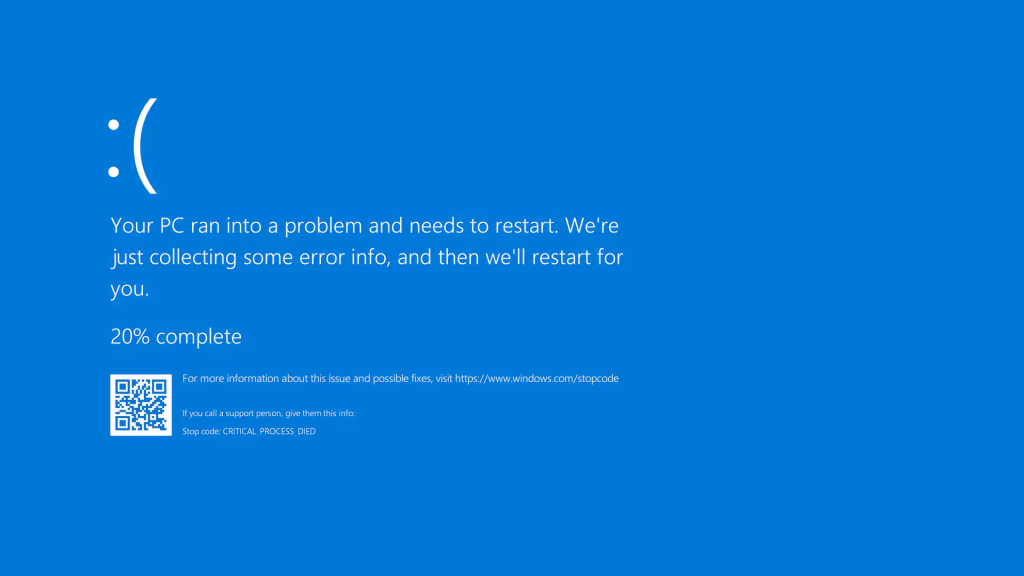
Few things are more frustrating than seeing your computer suddenly freeze and flash a blue screen with cryptic error messages. Known universally as the “Blue Screen of Death” (BSOD), this Windows error screen indicates that the operating system encountered a critical problem it couldn’t recover from without rebooting.
The BSOD has been a part of Windows since its early days, but it remains just as disruptive in 2025. Even with modern improvements in Windows 11 and newer hardware, crashes still happen—often at the worst times.
This guide breaks down the most common causes of BSODs and offers practical, proven solutions to help users fix the problem and prevent future crashes. Whether you’re a beginner or a power user, you’ll find answers here based on real-world experience and technical best practices.
What Exactly Is the Blue Screen of Death?
The BSOD is a stop error that appears when Windows encounters a fatal system error. It halts all operations to prevent damage and displays a screen filled with technical codes (like DRIVER_IRQL_NOT_LESS_OR_EQUAL or CRITICAL_PROCESS_DIED) and a QR code or error log for diagnostics.
Microsoft has streamlined the BSOD in modern versions of Windows, often showing just a sad face and a message that says, “Your PC ran into a problem and needs to restart.” While that’s friendlier than it used to be, it doesn’t help you understand what went wrong or how to fix it.
Understanding the cause of the BSOD is the first step to fixing it.
Common Causes of BSOD Errors
1. Driver Issues
Faulty or outdated drivers are among the top causes of BSODs. When a hardware component (like your graphics card or Wi-Fi adapter) has a driver that conflicts with Windows or another device, it can trigger a crash.
For example:
- nvlddmkm.sys relates to NVIDIA graphics drivers
- netio.sys refers to networking components
These issues usually arise after system updates, new hardware installations, or poorly coded third-party software.
2. Faulty RAM or Hardware Failures
Bad memory (RAM) or failing hard drives/SSDs are another frequent trigger. When Windows tries to access a memory sector that’s corrupted or physically damaged, it throws a stop error.
Symptoms:
- Random restarts
- System freezes before BSOD
- Crashes under heavy load (like gaming or video editing)
3. Corrupted System Files
Over time, Windows system files can become corrupted due to improper shutdowns, malware, or disk errors. Missing or damaged files can lead to fatal errors, particularly ones like:
- SYSTEM_SERVICE_EXCEPTION
- PAGE_FAULT_IN_NONPAGED_AREA
4. Overheating and Power Supply Problems
If your CPU or GPU overheats due to dust buildup, poor airflow, or fan failure, your system might shut down or crash to prevent damage. Similarly, an unstable power supply can trigger sudden system halts, often causing kernel power errors.
5. Malware and Security Software Conflicts
Advanced malware can inject itself into system processes, corrupt registry entries, or disable critical drivers—all of which can lead to a BSOD. Ironically, some aggressive antivirus programs themselves can conflict with system components and cause crashes.
6. Recent Software or Windows Updates
Sometimes, a Windows update or software installation can conflict with existing drivers or services. If the BSOD began after a recent change, that’s your first suspect.
How to Fix the Blue Screen of Death
Now that we’ve covered the causes, let’s look at solutions—starting with the simplest and moving toward more technical ones.
1. Note the Stop Code and Symptoms
When the BSOD appears, write down the stop code or scan the QR code using a smartphone. The specific message can give you clues about what component or driver is responsible.
Common stop codes:
- IRQL_NOT_LESS_OR_EQUAL = Driver conflict or faulty RAM
- KERNEL_SECURITY_CHECK_FAILURE = Memory corruption or outdated drivers
- CRITICAL_PROCESS_DIED = Failed system service
2. Boot Into Safe Mode
If your system won’t boot normally:
- Restart and press F8 or hold Shift + Restart from the login screen
- Navigate to Troubleshoot > Advanced Options > Startup Settings
- Choose Safe Mode with Networking
Safe Mode loads only essential drivers, allowing you to troubleshoot without interference.
3. Update or Roll Back Drivers
- Open Device Manager
- Right-click on the suspect driver (e.g., display adapter)
- Choose Update driver or Roll back driver if the crash began after an update
For GPU drivers, download the latest version directly from the manufacturer’s website (like Intel, AMD, or NVIDIA).
4. Run System File Checker (SFC) and DISM
To repair corrupted system files:
Open Command Prompt as Administrator and run:
bashCopyEditsfc /scannow
Then run:
bashCopyEditDISM /Online /Cleanup-Image /RestoreHealth
This two-step process will scan and repair system-level files without harming your personal data.
5. Check for Hardware Failures
Use built-in tools:
- Windows Memory Diagnostic: Search in the Start Menu, then restart to check RAM.
- chkdsk /f /r: Run in Command Prompt to scan and repair hard drive sectors.
For SSDs, use the manufacturer’s diagnostic tools to test health status and firmware.
6. Uninstall Recent Updates or Apps
If the issue started after a Windows or driver update:
- Go to Settings > Windows Update > Update history
- Select Uninstall updates
- Remove the most recent update
Do the same for apps from Control Panel > Programs and Features, especially utilities like custom fan controllers or third-party antivirus software.
7. Check Event Viewer and Reliability Monitor
To get a clearer picture of what’s happening:
- Open Event Viewer > Windows Logs > System
- Look for critical or error entries at the time of the BSOD
Also try Reliability Monitor from the Start Menu. It gives a timeline of events leading to the crash.
8. Perform a Clean Boot
To rule out software conflicts:
- Press Win + R, type
msconfig - Go to the Services tab, check Hide all Microsoft services, then click Disable all
- Go to Startup > Open Task Manager, and disable unnecessary startup apps
Restart and see if the BSOD reoccurs.
9. Reset or Reinstall Windows
If none of the above works:
- Go to Settings > System > Recovery
- Choose Reset this PC and select either Keep my files or Remove everything
Alternatively, reinstall Windows using a USB boot drive. This ensures a clean, stable base—but always back up important data first.

How to Prevent Future BSOD Errors
Even if you’ve resolved the issue, prevention is key. Here are habits that will keep your system stable long-term:
- Keep drivers and Windows up to date—but don’t rush to install updates blindly. Wait a few days after release.
- Avoid third-party driver downloaders or registry cleaners. They often do more harm than good.
- Monitor temperatures using tools like HWMonitor or Core Temp.
- Use surge protectors or UPS devices to guard against power outages.
- Install reliable antivirus software, but don’t run multiple security tools simultaneously.
Final Thoughts
The Blue Screen of Death may be alarming, but it’s also a valuable warning system—telling you that something serious needs attention. By understanding what causes BSODs and following structured troubleshooting steps, most users can resolve the issue without professional help.
In today’s modern Windows 11 environment, BSODs are less common than they used to be, but when they happen, they’re usually solvable with patience and the right tools. Whether it’s a faulty driver, bad RAM, or a misbehaving update, the solution is often just a few steps away.
Taking the time to fix and harden your system doesn’t just prevent crashes—it builds confidence in your own ability to handle tech when it misbehaves. And in an increasingly digital world, that’s one skill worth having.


With years of experience in technology and software, John leads our content strategy, ensuring high-quality and informative articles about Windows, system optimization, and software updates.